Hold Account Setup
A "Hold" connects your personal Discord account (with an active Midjourney subscription) to LinkrAPI. This guide walks you through the full setup process.
Prerequisites
✅ An active Midjourney subscription (Basic, Standard, Pro, or Mega)
✅ A LinkrAPI account with an active subscription ($8.50/mo base)
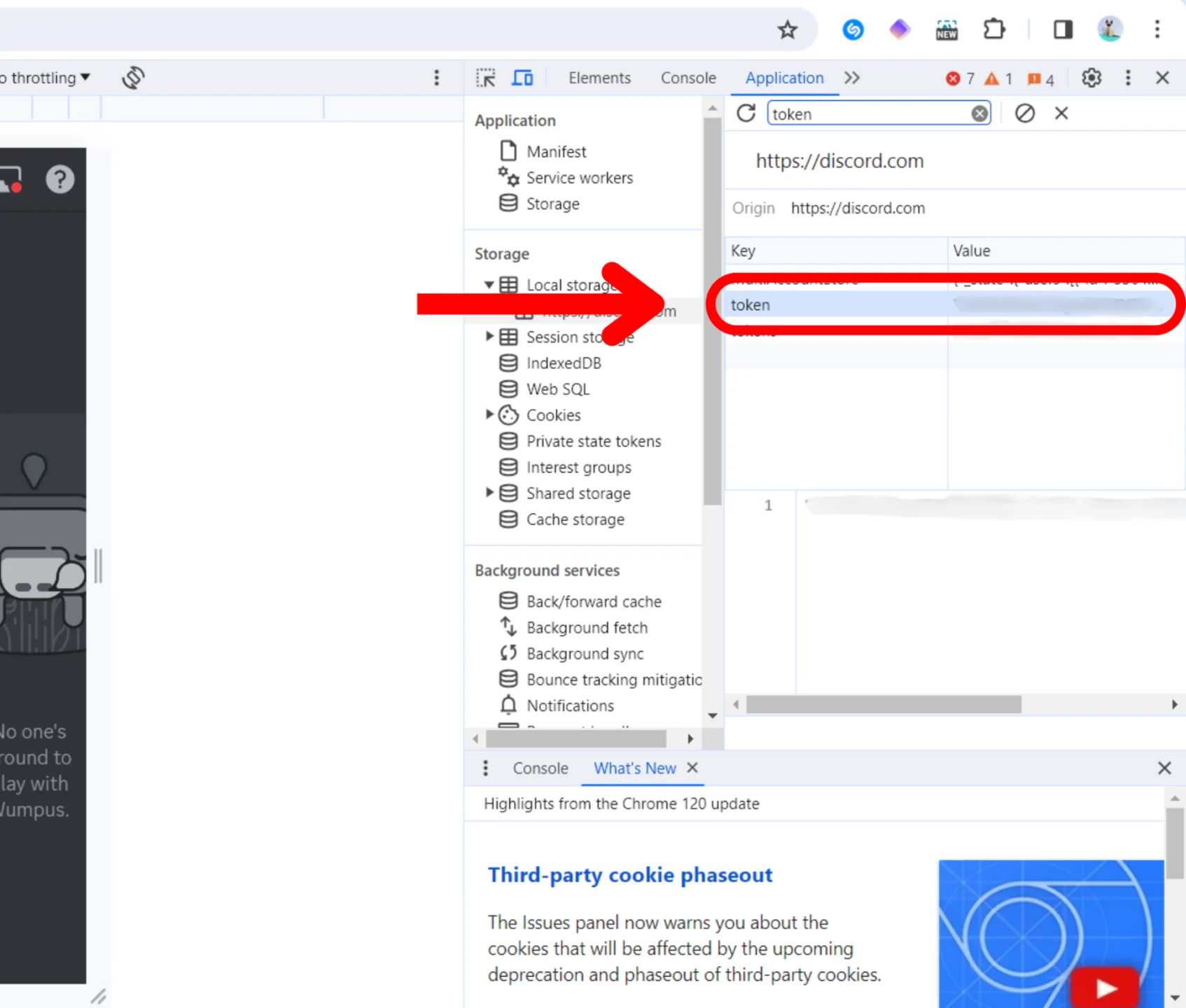
Step 1 — Get Your Discord Token
Your Discord token is a private key that allows LinkrAPI to send commands on your behalf. Here's how to find it:
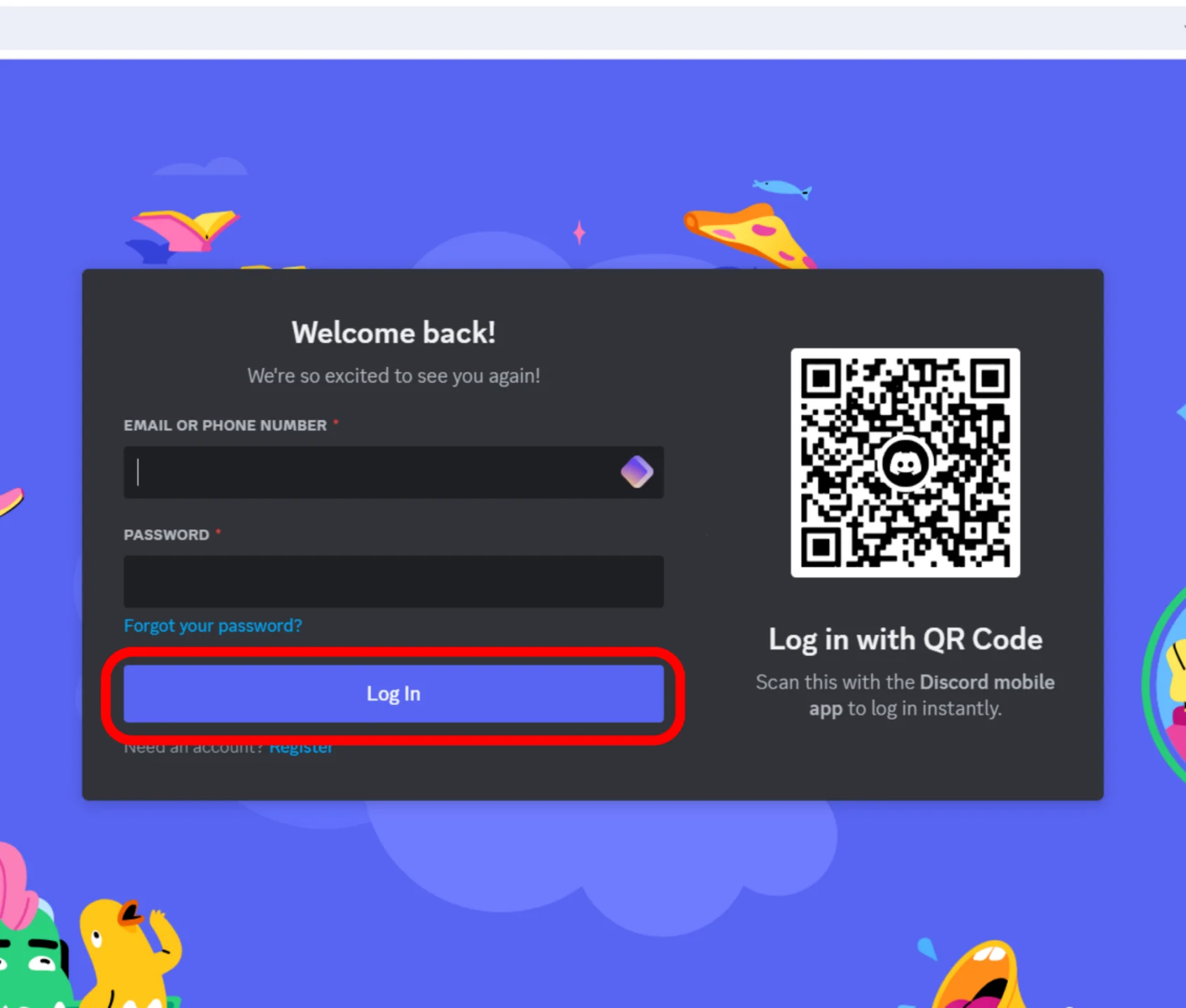
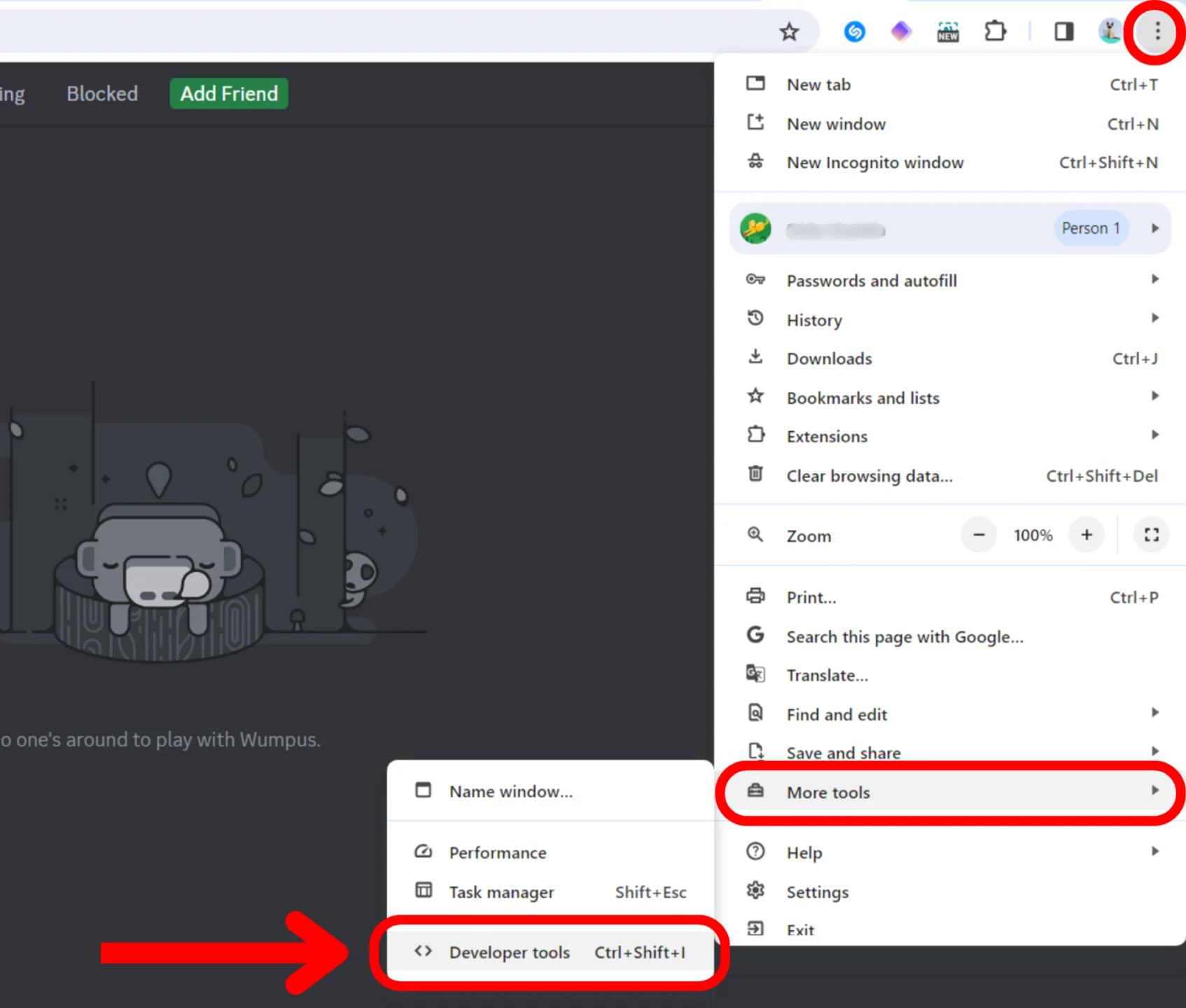
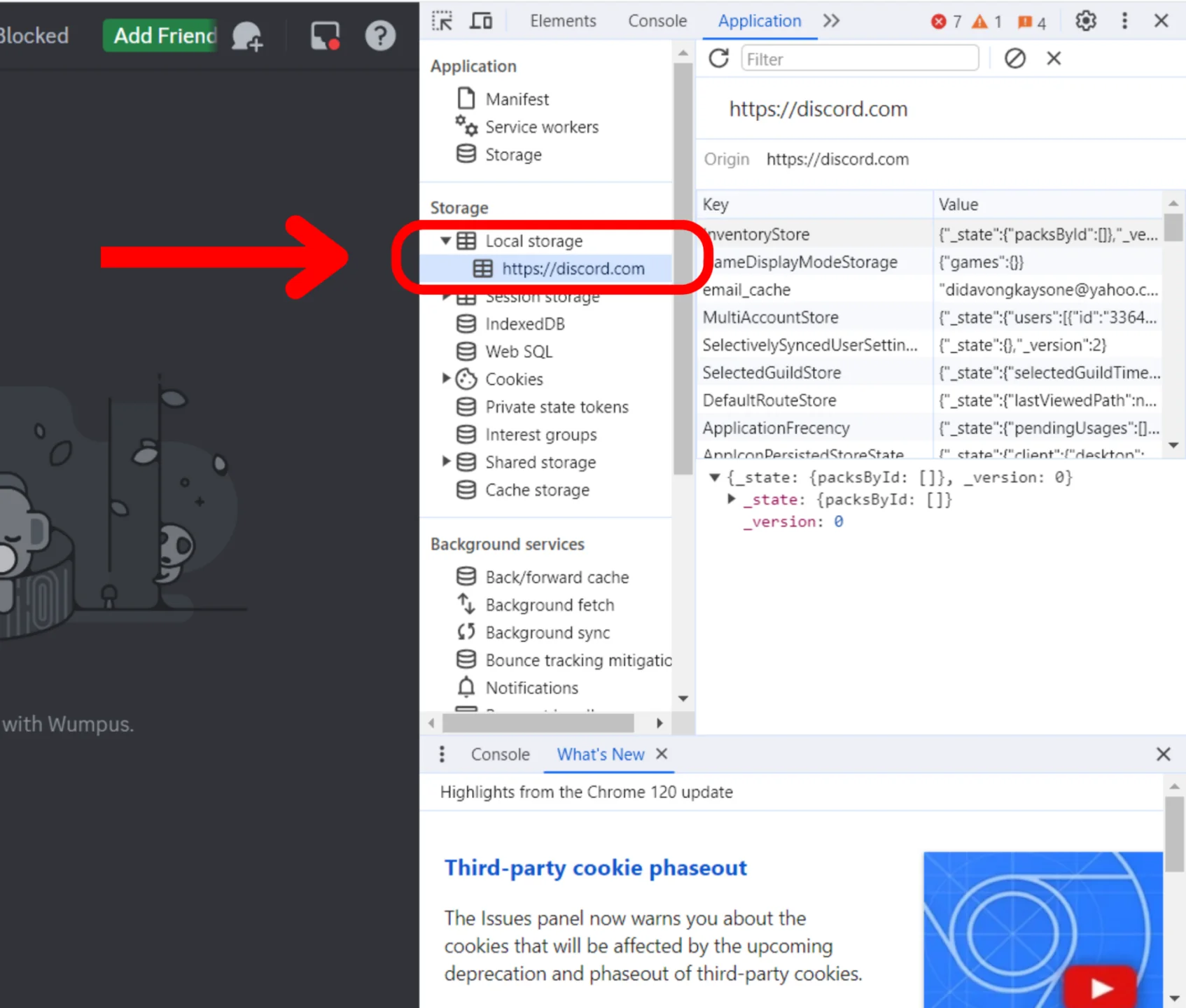
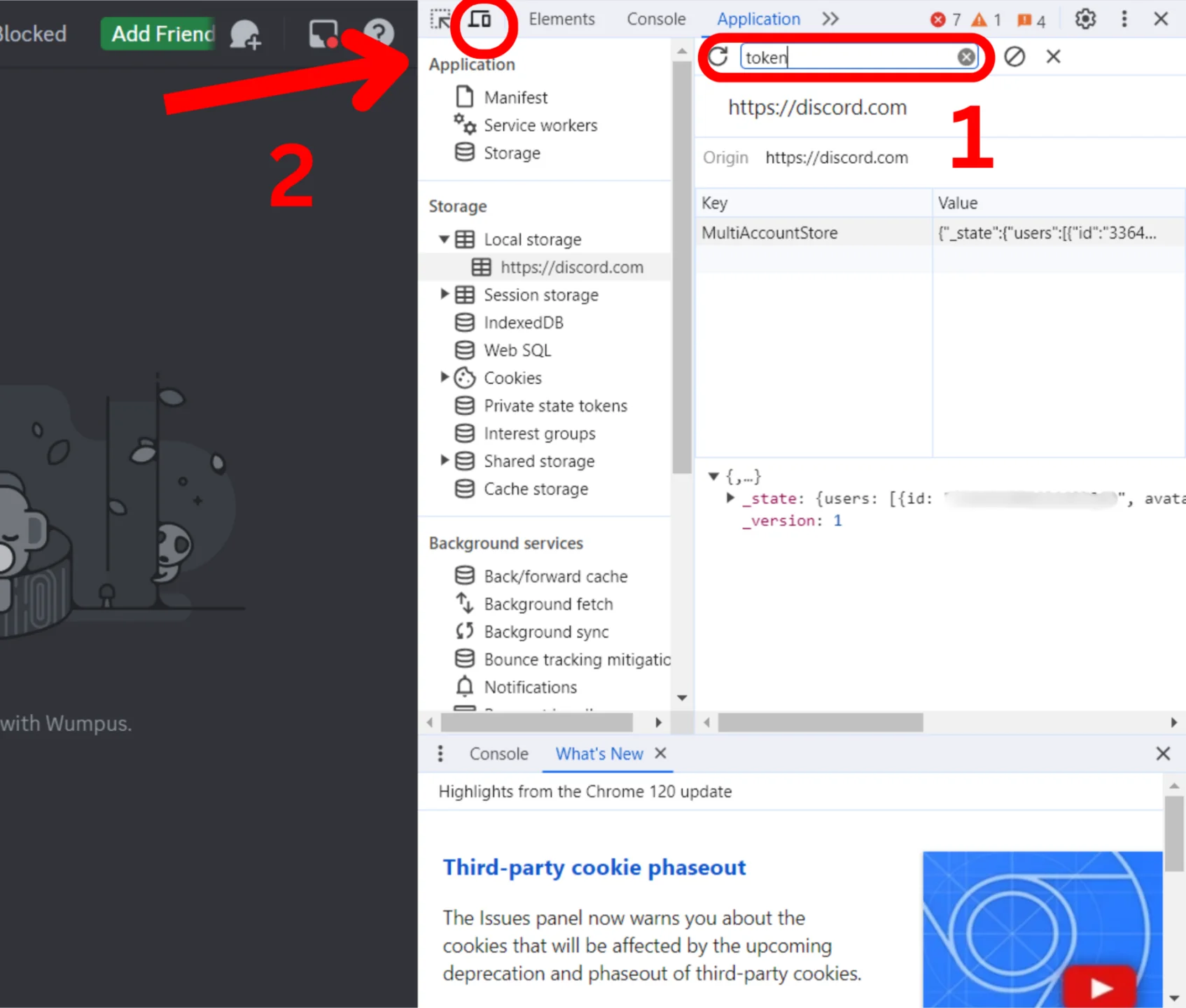
Step 2 — Subscribe to a Hold
Go to the Holds page in your dashboard and click "Add Subscription". Your first hold costs $8.50/month, each additional hold is $6.50/month.
Step 3 — Add Your Account
After subscribing, click the "+ Add Account" card. Enter a name for your hold and paste your Discord token. Click "Add Account" to save.
Your hold will appear with a green "Valid" badge and a unique API key (starting with lkr_).
Step 4 — Start Using the API
Copy your API key and use it to call the endpoints:
curl -X POST https://linkrapi.com/api/v1/imagine \
  -H "Authorization: Bearer lkr_your_api_key" \
  -H "Content-Type: application/json" \
  -d '{"prompt": "a beautiful landscape --ar 16:9"}'
Configuration Options
Each hold has additional settings you can configure in the dashboard:
Midjourney Account Info & Refresh
After you connect your Discord token to a hold, LinkrAPI automatically fetches your Midjourney account information by sending a /info command through your Discord account. This data appears on your hold card and includes:
• Active mode (Fast / Relaxed / Turbo)
• Fast time remaining with a visual progress bar
• Lifetime, Fast, Turbo, and Relaxed image counts
This is a Discord limitation, not a LinkrAPI bug. Future versions of LinkrAPI will use the Discord Gateway WebSocket to capture these ephemeral messages in real time.
How refreshes work
The info is automatically refreshed every 15 minutes. You can also click the ↻ Refresh button to fetch fresh data on demand.
Why is the refresh button rate limited?
Each refresh sends a real /info command to Midjourney through your Discord account. To protect your account from being flagged as a bot by Discord's anti-spam systems, the manual refresh is limited to 1 request per minute per user.
When should you refresh manually?
Use the refresh button only after you've made a real change:
• You bought additional fast hours
• You changed your active mode (fast/relax/turbo) inside Discord
• You suspect the displayed info is stale
For all other cases, the automatic 15-minute refresh is enough.